Published: 13 September 2026 | Category: Practical Tutorial
1. Why is Zoom Always Lagging? Upload Speed is the Key
Many tutors or online instructors face a massive headache: you've already installed fibre broadband, but the moment you start a Zoom class, students complain the video is pixelated and they can't even read the whiteboard. Nine times out of ten, this happens because everyone focuses on "download speed" and completely ignores "upload speed", which is crucial for live streaming.
When you're hosting a video call at home or in the studio, your computer is constantly sending HD video and audio to the server. This process relies heavily on upload bandwidth. If your family members are using the same network for BT downloads, uploading large files to the cloud, or if your broadband is asymmetrical (fast download, slow upload), your Zoom feed will definitely lag. To fix this, we first need to understand the most common network bottlenecks:
- Upload bandwidth hogged: Family members backing up photos to iCloud or Google Drive, maxing out the upload speed.
- Wi-Fi interference: Using an old router, or having signals blocked by structural walls, leading to high packet loss.
- ISP network congestion: Especially during the 8 PM to 11 PM prime time, some lower-tier broadband providers experience significant speed drops.
- Hardware decoding can't keep up: Your computer is too old to process HD video compression in real-time, affecting network transmission efficiency.
So, if you want your students to see the whiteboard as clearly as if they were sitting in the front row, you need to start with a solid broadband foundation and pair it with the right software settings.
2. Which Broadband Plan to Choose? Is 1000M or 2500M Enough?
Since upload speed is so important, you need to know the specs when choosing a broadband plan. Mainstream fibre broadband providers in the market right now, like HKT, HKBN, and CMHK, usually highlight their 1000M (1Gbps) plans. For standard one-on-one or small group tutoring, a 1000M "symmetrical" fibre connection is actually more than enough. But if you're teaching large classes, or if several people at home are heavy internet users at the same time, you might want to consider upgrading to 2500M.
Why? Because Zoom's 1080p HD video officially recommends a stable upload speed of at least 3.8Mbps. Sounds pretty low, right? But remember, this is an "absolutely stable" requirement. If you're on Wi-Fi and someone else at home is hogging the bandwidth, even a 1000M connection can experience sudden lag spikes. The beauty of 2500M (2.5Gbps) is the massive bandwidth pipe, offering extremely high fault tolerance. Let's compare them in the table below:
| Broadband Speed | Average Monthly Fee | Best For | Interference Resistance |
|---|---|---|---|
| 1000M (Symmetrical Fibre) | $118 - $168 | Small group tutoring, standard video calls | Medium, requires a good router |
| 2500M / 2x1000M | $168 - $258 | Large classes, family watching 4K Netflix simultaneously | Very high, abundant bandwidth |
| 5G Home Broadband | $108 - $148 | Temporary venues, tong laus without fibre access | Weaker, affected by weather and base stations |
⚠️ Note: If you live in a village house or tong lau and can only use old 8M or 30M VDSL copper broadband, your upload speed is usually just 1M to 10M. Teaching on Zoom will definitely be pixelated. In this case, it's highly recommended to switch to a 5G router setup as a workaround, or check if fibre is available for your village.
3. Hardware Matters: Router and Connection Setup
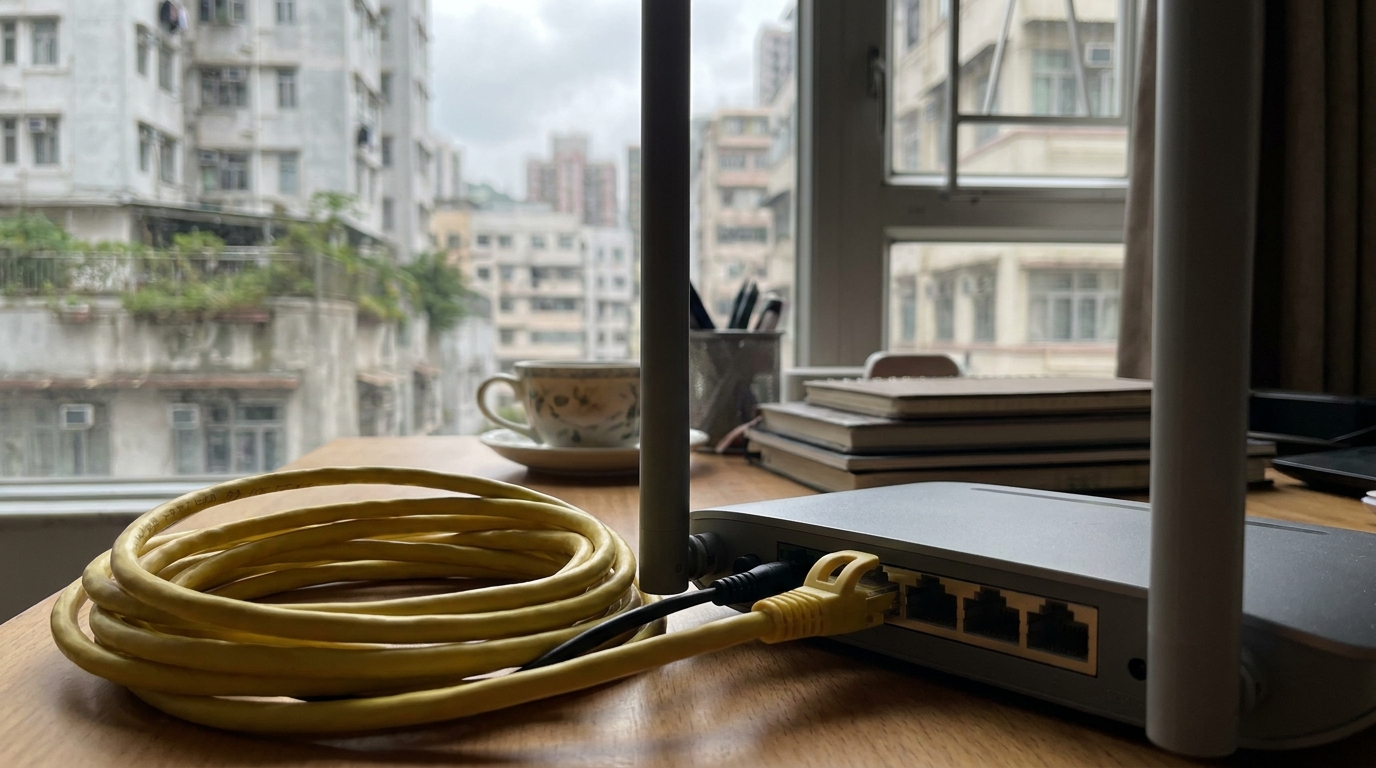
Even with great broadband, you need the right hardware to maximize it. Many tutors take the easy route and just connect their laptops to Wi-Fi. But Wi-Fi relies on radio waves, making it highly susceptible to interference from microwaves, Bluetooth devices, or your neighbour's router channels. Once interference hits, your Ping (latency) spikes, and students will hear your voice stuttering or see audio-video desync.
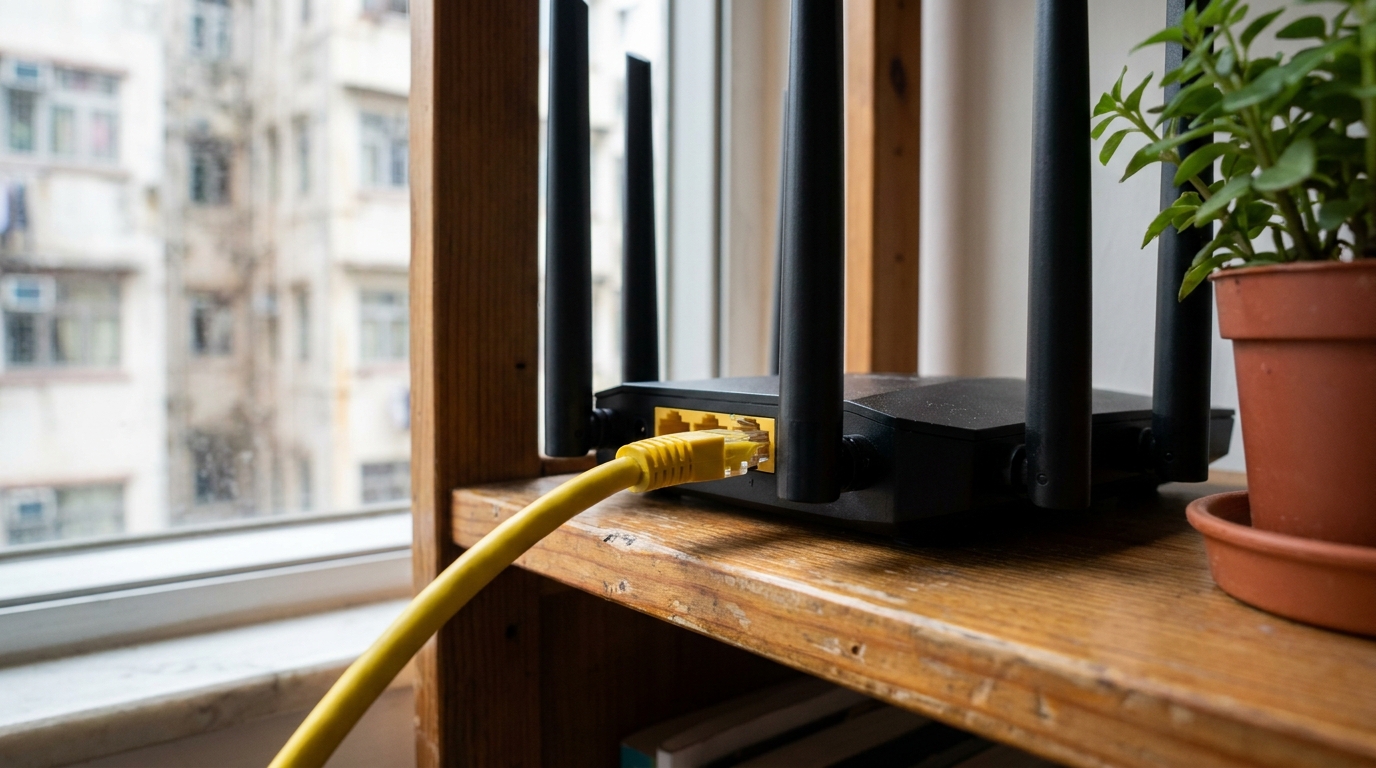
The safest bet is always to "plug in a LAN cable". Using a Cat 6 or Cat 5e Ethernet cable to connect your computer directly to the router guarantees zero-interference network transmission. If you absolutely must use Wi-Fi, make sure you follow these setup tips:
- Switch to a Wi-Fi 6 or Wi-Fi 7 router: The OFDMA technology in newer routers effectively handles congestion when multiple devices are online, drastically reducing latency.
- Connect to the 5GHz band: Never connect to 2.4GHz. While 2.4GHz is great at penetrating walls, it's slow and prone to interference. 5GHz is much faster and perfect for use in the same room or through a single thin wall.
- Place your router high up: Don't stuff your router under the TV cabinet or on the floor. Try to place it at chest level or higher, and keep the antennas away from metal clutter.
- Close the distance: Your teaching spot should ideally be in the same room as the router (line of sight), with no physical walls in between.
4. Practical Setup: How to Enable True HD Mode on Zoom
Now that the network infrastructure is sorted, let's talk software. By default, Zoom doesn't give you the highest video quality. To save server resources, it usually caps you at 360p or 720p. If you want your students to clearly read the dense text on your whiteboard, you have to manually enable the HD option.
Keep in mind, Zoom's 1080p feature is usually only available to Pro or higher paid accounts, and under specific conditions. Here are the steps to ensure the best possible video quality:
- Open the Zoom desktop app, click your profile picture in the top right corner, and go to "Settings".
- Select the "Video" tab.
- Under the "Camera" section, check the box for "HD".
- Check "Adjust for low light", set it to "Manual", and slide the bar to an appropriate brightness. A video that's too dark will generate a lot of noise, which eats up bandwidth and causes pixelation.
- Go to "Advanced" settings and make sure "Optimize video quality with de-noise" is checked.
- If you're using a second camera specifically for the whiteboard, utilize the "Share Screen" feature -> "Advanced" -> "Content from 2nd Camera". This mode optimizes the clarity of static text.
💡 Tip: Before class, you can click "Statistics" in the top right corner of the Zoom interface to check if the resolution under the "Video" tab is hitting 1280x720 or 1920x1080, and ensure your "Jitter" stays below 10ms.
5. Lighting and Camera Placement: Fixing Whiteboard Glare
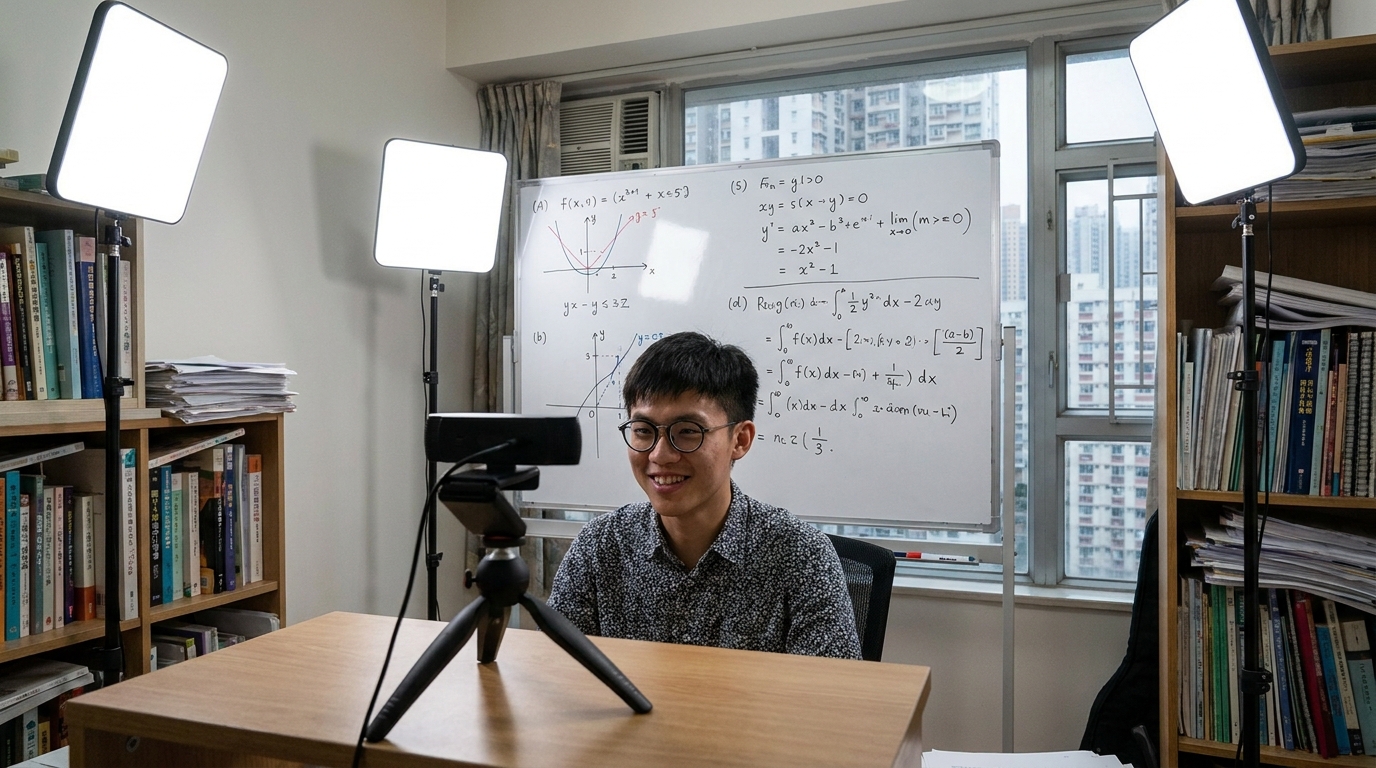
Besides broadband and software, your physical environment also affects the final video quality. Many tutors get complaints that "the whiteboard is too glaring to read." This is actually a fatal flaw in lighting and camera angles. When a webcam encounters strong glare, its auto-exposure system darkens the entire frame, turning your writing into a blurry mess.
To fix this and reduce the burden on video compression, try these physical setup tricks:
- Avoid direct lighting: Don't point ceiling lights or ring lights directly at the whiteboard. You should angle the lights at 45 degrees towards the board, or use a softbox to make the lighting soft and even.
- Tweak the camera angle: If a little glare on the whiteboard is unavoidable, try moving the webcam slightly higher or lower to dodge the reflection angle.
- Use thick marker pens: Ditch the fine-tip whiteboard markers. Use thick black or dark blue markers. The high contrast makes it easier for the camera to focus, so even if the network slows down slightly, the text remains legible.
- Wipe the whiteboard clean: Accumulated ink stains on the whiteboard will look like grey smudges on camera, messing with the video encoder's judgment. Wipe it clean with a dedicated whiteboard cleaner before every class.

6. Summary: Nail the Network Basics for Smooth Teaching
In conclusion, creating a professional virtual classroom that won't strain your students' eyes isn't just about buying an expensive webcam. You must ensure your home broadband has enough juice (especially upload speed) — a 1000M fibre connection is highly recommended at a minimum. Next, be a good sport and plug in a LAN cable to avoid Wi-Fi interference. Finally, enable the HD settings in Zoom and sort out your lighting setup.
When your video feed is smooth and your whiteboard text is crystal clear, students will naturally be more focused, and parents will give your professional image a massive boost! If you find your current home broadband plan isn't cutting it, constantly drops speed at night, or you're still stuck on an old village house copper line, now is definitely the time to consider an upgrade.
🔥 Recommended Action
Don't want sluggish internet ruining your teaching quality anymore? Whether you're looking for symmetrical 1000M fibre, upgrading to an ultra-fast 2500M experience, or seeking a 5G broadband lifesaver for your village house, the most important thing is to clearly compare the actual coverage and offers of each telecom provider. Compare the latest broadband quotes now and pick the god-tier broadband plan that best suits your teaching needs!