
Published: 18 October 2026 | Category: Practical Tutorial
1. Why set up your own home VPN?
Whether we're grabbing a bite or working at a cafe, it's tempting to just connect to the free public Wi-Fi. But did you know these unprotected networks are actually full of risks? Hackers can easily intercept your browsing data, or even steal your login passwords and online banking details. To protect their privacy, many people turn to a VPN (Virtual Private Network). But instead of paying a monthly subscription for a commercial VPN service, as long as you have home broadband, you can easily set up a free and secure home VPN server yourself!
Setting up your own VPN doesn't just encrypt your data when you're out and about; it comes with a ton of practical perks. For instance, when you're traveling or on a business trip overseas, connecting to your home VPN switches your IP address back to a Hong Kong IP. This lets you easily bypass geo-restrictions and keep watching your favourite shows or football matches on local HK streaming platforms without worrying about being blocked. Plus, if you have a NAS (Network Attached Storage) or smart home devices, connecting back to your home network via VPN lets you securely access your private files or remotely check your IP cams. You won't have to expose these sensitive devices directly to the internet, massively reducing the risk of being hacked.

To sum up, the main benefits of setting up your own VPN include:
- Top-tier security: When using public Wi-Fi, all your data is encrypted and routed back home, preventing hackers from stealing your info.
- Bypass geo-blocks: Get a HK IP even when you're overseas, giving you unrestricted access to local Hong Kong online services and streaming platforms.
- Secure intranet access: Safely read files from your home NAS anytime, anywhere, or seamlessly manage your smart home devices.
- Completely free: By utilizing your existing home broadband and router, you don't need to pay any extra monthly fees.
2. Basic hardware and network requirements for a home VPN
At this point, you might be wondering: "Is setting up a VPN complicated? Do I need to buy professional IT gear?" The truth is, tech has come a long way, and setting up a home VPN is now incredibly accessible. As long as you meet a few basic hardware and network requirements, you can easily build your own private connection tunnel.
First and foremost is your home broadband network. To connect to your home from the outside, your broadband provider (like HKT, HKBN, etc.) needs to provide a "Public IP". Most fibre broadband plans in Hong Kong assign a dynamic Public IP, which is perfect for setting up a VPN. However, keep in mind that if you're using the increasingly popular 5G home broadband, mobile networks usually use CGNAT technology and only assign a private IP. This means you might not be able to connect directly from the outside, and you'll need more advanced penetration solutions like Tailscale.
⚠️ Note: If you've set everything up but still can't connect to your VPN, there's a high chance your broadband doesn't provide a real Public IP. You can log into your router's admin panel and compare the "WAN IP" with the IP shown on sites like WhatIsMyIP. If they don't match, it means you're behind a private network.
As for hardware, the following three types of devices can be used as a VPN server. You can choose based on your home setup:
- Mid-to-high-end routers: The most highly recommended method! Many mid-to-high-end routers on the market today come with built-in VPN server features (supporting OpenVPN or WireGuard). The setup is dead simple, and you don't need to leave another machine running 24/7.
- NAS (Network Attached Storage): If you already have a NAS at home, they usually offer official VPN server packages that you can download for free. They offer stable performance and user-friendly interfaces.
- Raspberry Pi / Mini PCs: Great for folks with some IT background. You can install open-source software like PiVPN for maximum flexibility, though the setup process is a bit more tedious.
3. Step-by-step guide: Set up your router VPN in 3 steps
Since using a router is the most convenient way to set up a VPN, we'll use a standard home router as an example to walk you through the setup step by step. The WireGuard VPN protocol has become incredibly popular in recent years. Compared to the older OpenVPN, WireGuard offers faster connection speeds, drains less mobile battery, and is super easy to configure. As long as your router supports WireGuard, just follow these three steps and you're good to go!
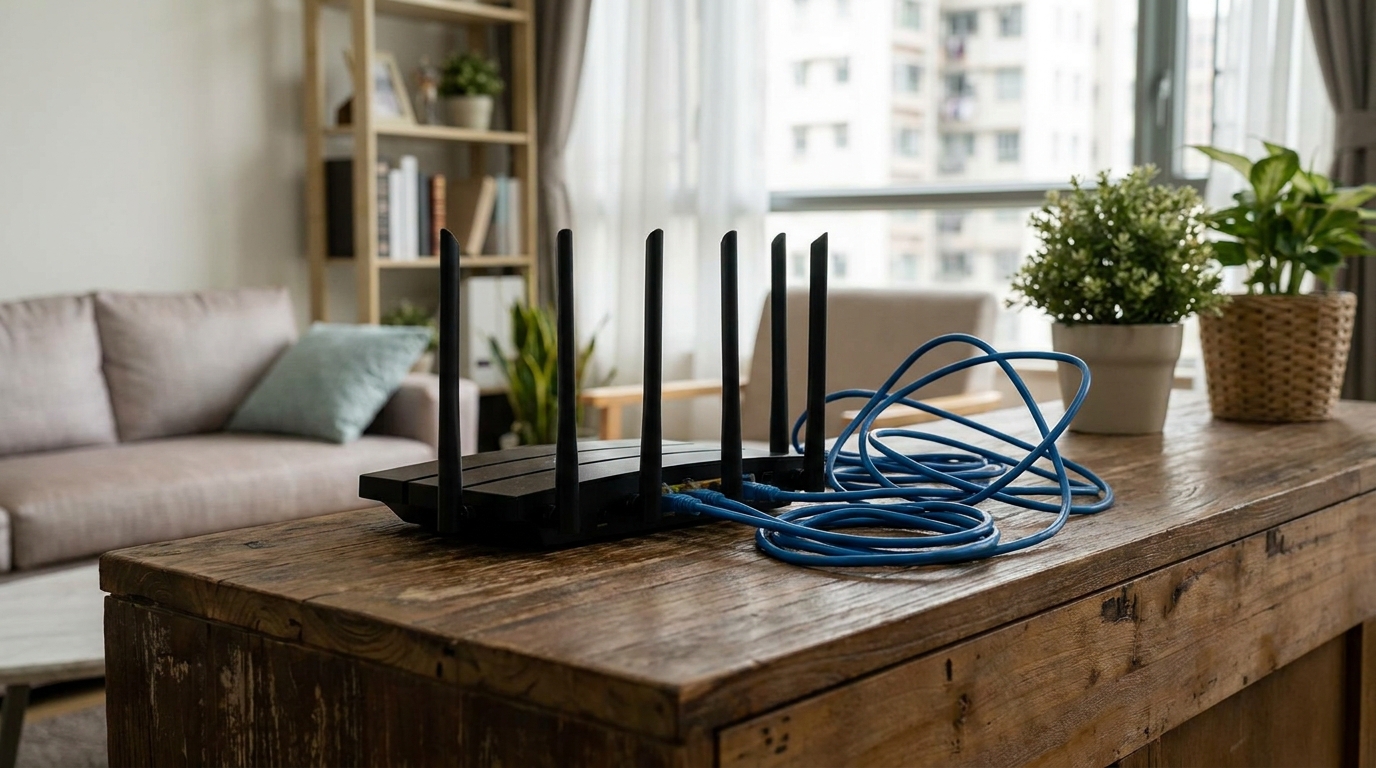
Before we begin, make sure your router is updated to the latest firmware for the best security and performance experience.
- Set up DDNS (Dynamic Domain Name System): Since your home broadband's IP address changes periodically, memorizing a new IP every time is a hassle. Log into your router's admin panel, find the "DDNS" feature under "WAN" or "External Network" settings, enable it, and register a free domain name (e.g., myhome.asuscomm.com). From now on, whenever you're out, just connect to this domain and it'll automatically locate your home router.
- Enable WireGuard VPN Server: Head over to the "VPN Server" settings page, select the "WireGuard" protocol, and toggle the feature to "Enable". The system will usually generate the server keys for you automatically. Under the client settings, click "Add User" and give your phone or computer a name.
- Export the config profile and connect: After adding a user, the router screen will display a QR code, or let you download a .conf config file. Download the official "WireGuard" app on your phone, open it, and scan the QR code on your router's screen to import all the complex connection data in a second. When you're out, just open the app and hit "Connect" to instantly link back home!
💡 Tip: When testing your VPN connection, remember to turn off your phone's Wi-Fi first and switch to mobile data (4G/5G) to simulate connecting from an external network. If the connection is successful, you can open a browser on your phone to check your IP address and see if it has changed to your home broadband's IP.
4. Buying a commercial VPN vs. Setting up your own
While setting up a home VPN has plenty of benefits, there are also many large-scale commercial VPN services on the market. So, what's the difference between the two? Which one suits you best? It really depends on your daily usage habits and network needs. Let's compare them across four aspects: cost, privacy, connection speed, and IP location.
The biggest selling point of commercial VPNs is their "cross-regional capability". If your goal is to bypass geo-blocks to watch country-specific Netflix shows or play region-locked foreign online games, buying a ready-made VPN is your only option, as they have servers all over the globe. But if you just want to browse securely on public Wi-Fi, or pretend you're surfing from Hong Kong while traveling, setting up your own home VPN is more than enough. Plus, you won't have to worry about commercial VPN companies collecting your browsing data.
| Comparison | Home VPN Setup | Commercial VPN Service |
|---|---|---|
| Cost | Free (uses existing broadband & gear) | Around $20 to $80 per month |
| IP Location | Hong Kong only (Home IP) | Global (switchable anytime) |
| Data Privacy | Extremely high (you control all data) | Medium to high (requires trusting the VPN company) |
| Speed Bottleneck | Limited by your home broadband's "upload speed" | Limited by VPN server load |
Pay special attention to the "Speed Bottleneck" in the table. When you connect to your home VPN from outside and browse a website, the data flow goes like this: Website -> Your home broadband (download) -> Your home broadband (upload) -> Your phone. Therefore, your maximum browsing speed on the go is equal to your home broadband's "upload speed". Most traditional fibre broadband plans in Hong Kong offer symmetrical speeds (e.g., 1000M download / 1000M upload), making the experience incredibly smooth. But if you're using a budget village house broadband or an asymmetrical plan (e.g., only 30M upload), your VPN connection will feel pretty sluggish.
5. Summary: A stable home broadband is the real key
After reading the guide and analysis above, you should now know how to use your home router to set up a free and secure VPN server. Whether it's to protect your personal privacy on public Wi-Fi or to enjoy unrestricted access to Hong Kong entertainment while traveling for work or leisure, a home VPN is an incredibly handy networking trick. Just follow the steps to set it up once, and you'll be set for life, enjoying a secure connection anytime, anywhere.

At the end of the day, though, a smooth home VPN experience absolutely relies on a high-quality, stable home broadband connection with a real Public IP. As mentioned earlier, your broadband's "upload speed" directly dictates your browsing experience when using the VPN remotely. If you find your current home broadband is too slow, constantly dropping, or on a plan without a Public IP, your VPN won't perform well—no matter how expensive your router is.
🔥 Recommended Plans: Upgrade your fibre broadband to maximize VPN performance
Want to enjoy lightning-fast, uninterrupted VPN connections? Right now, major telecom providers (like HKT, HKBN, etc.) are offering 1000M or 2000M fibre broadband plans that not only provide ultra-fast symmetrical upload and download speeds but also come with exclusive welcome offers! Monthly fees can be as low as a hundred-something dollars.
If you're looking to upgrade your home network, or if your contract is almost up and you want a better deal, keep these points in mind:
- Ensure the new plan provides a real Public IP (avoiding the CGNAT restrictions of some 5G broadband plans).
- Choose a fibre broadband plan with symmetrical upload and download speeds (e.g., 1000M/1000M).
- Opt for plans that bundle the latest Wi-Fi 6/6E routers. Most of these already have built-in VPN server functions, saving you the cost of buying a new router.
If you're unsure which broadband plan best suits your VPN needs, or if you want to compare the best broadband quotes across Hong Kong, feel free to make a free inquiry through King Broadband. Our specialists will help you find the most cost-effective internet solution based on your actual living environment and network requirements! Get your home network sorted now, and you'll enjoy total peace of mind whenever you browse on the go!