Published: 27 April 2026 | Category: Practical Tutorial
1. Why Should You Regularly Update Your Router Firmware?
Hi everyone! It's incredibly frustrating when you're gaming, streaming videos, or having a Zoom call in your home office, and suddenly the connection drops or buffers endlessly. Most people immediately blame their broadband provider, but more often than not, the culprit is your home router! Do you even remember the last time you updated your router's firmware? Firmware is essentially your router's brain and operating system. Updating it regularly is the key to ensuring network stability and security.
Why are regular updates so important? First, they patch known system bugs. Technology evolves rapidly, and hackers are constantly coming up with new attack methods. If you don't update your router regularly, it easily becomes a backdoor for hackers to invade your home network. Second, updates boost performance and stability. Manufacturers often release updates to optimize WiFi signal transmission and fix random disconnection issues.
Additionally, some updates introduce brand-new practical features, like stronger parental controls, VPN support, or better compatibility with the latest smart home devices. In short, keeping your firmware up to date is the first line of defense for your online experience. Here are three core reasons why you must update regularly:
- Patch security vulnerabilities: Prevent malware and hackers from hijacking your network and protect your privacy.
- Improve connection stability: Fix sudden WiFi drops, slow speeds, or uneven coverage.
- Add practical features: Unlock support for the latest network protocols, allowing even older routers to perform better.

2. Pre-Upgrade Checklist: Backup and Verify Your Model
Before you officially start upgrading your router, don't rush to hit the "Update" button! If you skip the prep work, you could easily "brick" your router (meaning it breaks and won't turn on). First, you need to know your router's exact model and hardware version. The same router model might have v1, v2, or v3 versions depending on the manufacturing year. If you download the wrong firmware and force the installation, you'll be in big trouble.
Second, we strongly recommend logging into your router's admin panel to back up your current configuration before upgrading. Usually, under the system management page, there's a "Backup Settings" option that lets you save the config file (typically in .cfg or .bin format) to your computer. If you need to reset the router after the update, you can restore all your WiFi names, passwords, and complex settings like port forwarding with one click, saving you a lot of time.
Finally, picking the right time to update is crucial. Never do it while your family is watching a football match or when you're on an important video call, because the router must reboot during the process, causing a brief internet outage. It's best to do it late at night or when no one urgently needs the internet.
⚠️ Warning: Never cut the power during a firmware update! If there's a power outage or you unplug the wrong cable mid-way, your router will likely suffer permanent damage.
- Flip your router over and note down the exact model and hardware version (e.g., v2.0) from the bottom label.
- Log into the router's admin panel and back up your current configuration file to your computer.
- Ensure no one at home is doing anything important online, and set aside about 10 minutes for the network downtime.
3. Step-by-Step Guide: The Secret to a Safe, Uninterrupted Upgrade
Once you're prepped, let's get to the main event—the actual update! Nowadays, many new smart mesh routers offer one-click updates via a mobile app. But if you want the most stable, truly "safe and uninterrupted upgrade" (meaning the file transfer won't drop mid-way), I highly recommend the most traditional and reliable method: using a LAN cable to connect your computer and router for the upgrade.
Why must you use a LAN cable? Because if you transfer the firmware file over WiFi and the signal blips mid-upgrade, the file transfer will be interrupted. Best case scenario, the update fails; worst case, your router gets bricked. Plugging a physical LAN cable directly into the router's LAN port guarantees 100% stable data transmission.
To log into the router's admin panel, usually you just open a browser and type in 192.168.1.1 or 192.168.0.1 (depending on the brand). Look for "System Tools" or "Administration" inside, and you'll find the "Firmware Upgrade" option. Upload the official firmware file you downloaded earlier, and then wait patiently.
While the update progress bar is running, you don't need to do anything—just watch it smoothly hit 100%. Remember, the whole process might take 3 to 5 minutes. During this time, the router's lights might flash wildly or turn off completely. This is totally normal, so keep your hands off it!
💡 Tip: If you're using a Mac without a LAN port, consider buying a USB-C to LAN adapter. It's definitely a handy tool to have around the house!
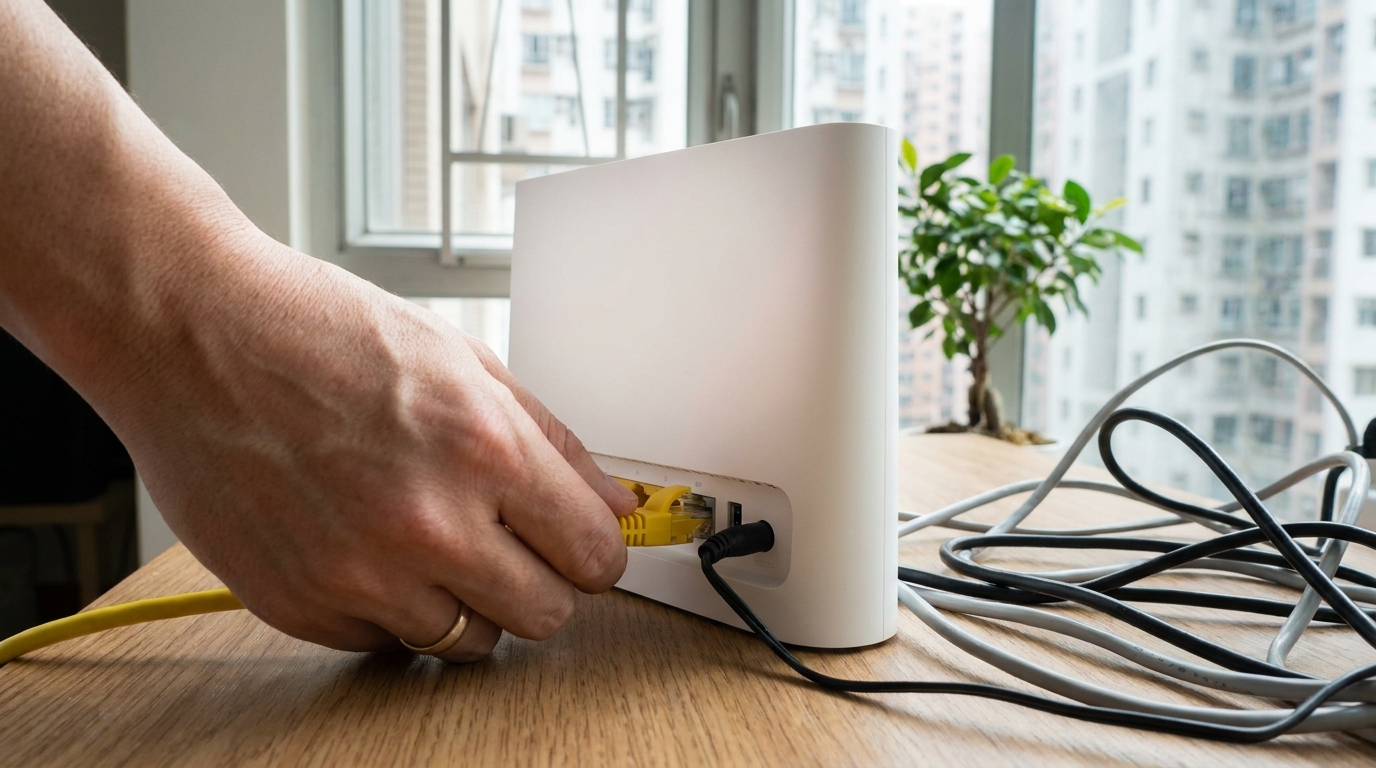
- Connect your computer to the router's LAN port using a physical LAN cable.
- Open a browser and enter the router's IP address to log into the admin interface.
- Go to system settings, select firmware upgrade, and upload the corresponding file.
- Wait for the progress bar to reach 100% and for the router to reboot automatically.
4. Emergency Rescue: What If the Update Fails and Bricks Your Router?
There's always a "what if." If you're really unlucky and the power trips mid-update, or your cat walks by and unplugs the cable, causing the update to fail or even brick your router, what should you do? Don't panic just yet. Most of the time, your router doesn't need to go straight into the trash—it can still be saved!
The first trick to try is a "Hard Reset." There's usually a tiny reset hole on the back of the router. Use a toothpick or paperclip to press and hold it for about 10 to 15 seconds until all the front LED lights flash and turn off, then let go. This action forces the router back to its factory settings. If it's just a minor glitch, a reset usually lets you log back into the admin panel to try the update again.
If the reset does nothing and only the power light stays solid red, you can try advanced rescue methods. Some high-end routers have a built-in Recovery Mode. You can download dedicated rescue software from the official website and force-flash the firmware again via your computer. If you've exhausted all options and it still doesn't work, it might be time to contact the distributor for repair assistance.
| Emergency | Possible Cause | Solution |
|---|---|---|
| No internet after update | Settings wiped or ISP IP not released | Restore backup config file, or reboot the broadband modem |
| Red light on / Won't turn on | System corrupted due to interrupted update | Try holding the Reset button for 15 seconds for a hard reset |
| Can't log into admin panel | Browser cache issue or IP changed | Clear browser cache, or reconnect using a LAN cable |

5. Summary: Regular Network Maintenance Keeps Your Internet Smooth
Wrapping up, you should now have mastered the secrets to safely upgrading your router! Regularly checking and updating your firmware is like giving your home network a routine body check and a vaccine. It's the ultimate way to keep your internet running smoothly and prevent hacker intrusions. Don't just ignore update prompts for years because it feels like a hassle—it'll be too late for regrets when things actually break and you lose connection.
On the flip side, if your router is already updated to the latest version and the hardware specs are fine, but you still feel the internet is sluggish, gaming is laggy, or streaming 4K videos buffers when too many people are online at home, then it's likely not a router issue. Your home broadband line might simply be overloaded!
Nowadays, major telecom providers like HKT, HKBN, and SmarTone have rolled out ultra-fast 2000M or even 2500M fiber broadband plans. If you want to unleash the full power of the latest WiFi 6 or WiFi 7 routers, upgrading to a high-bandwidth internet line is absolutely worth it. When your contract is nearing its end, it's a great time to compare the latest market quotes!
🔥 Recommended Plans
If you find your router is still slow after an update, it might be time to upgrade your broadband contract! There are plenty of great-value 1000M to 2500M fiber plans on the market right now, with monthly fees as low as just over $100. Remember to let King Broadband help you compare prices—we guarantee you'll find the best plan!