Published: 17 September 2026 | Category: Practical Tutorial
1. Why choose the Unifi Dream Machine (UDM)?
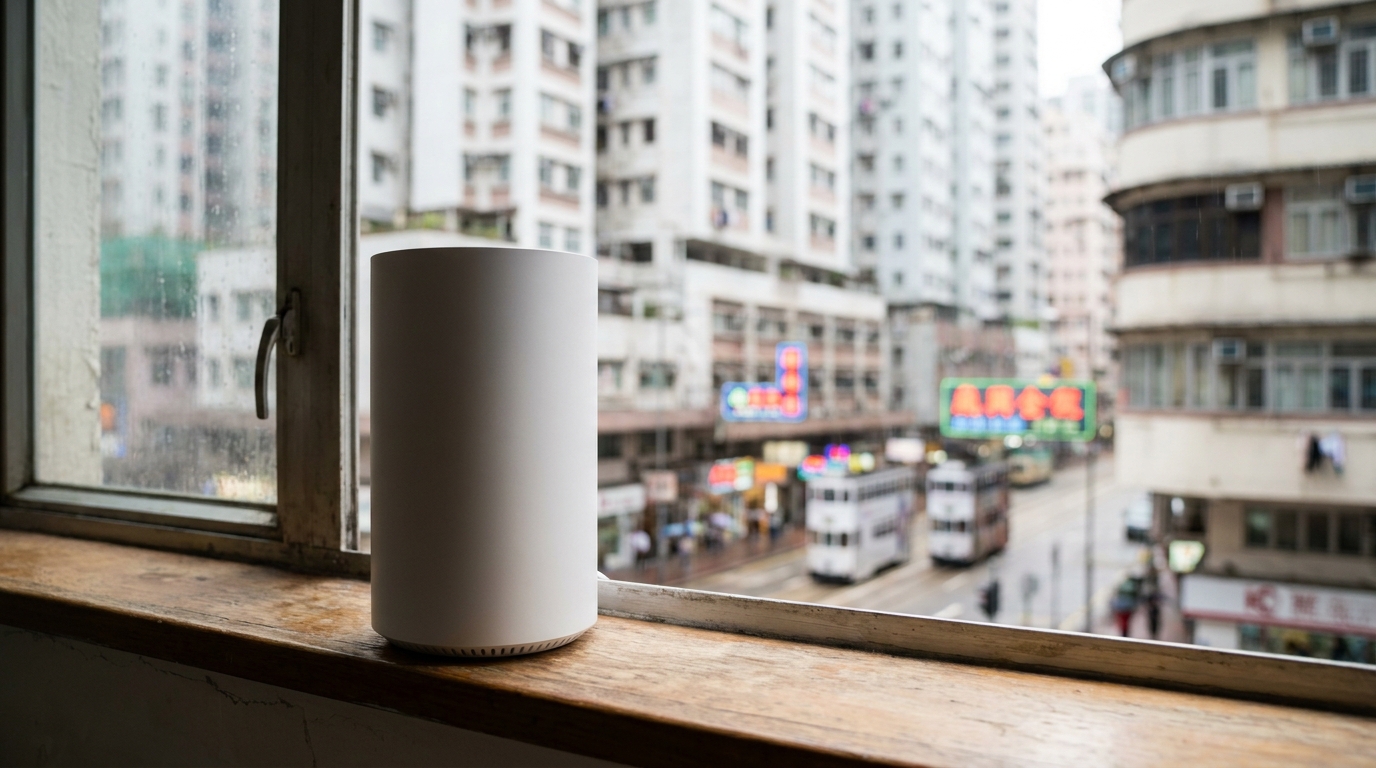
I'm sure many Hongkongers have experienced this: you've got 1000M fiber broadband installed, but the moment you step into the bedroom or go behind a structural wall, your WiFi drops to one or two bars, or even disconnects constantly. The free routers provided by ISPs like HKT or HKBN often have limited performance and simply can't handle the demands of dozens of smart devices connecting simultaneously. This is where the Unifi Dream Machine (UDM), highly recommended by foreign tech YouTubers, comes to the rescue. The UDM is a "prosumer" networking product from Ubiquiti. It packs enterprise-grade stability and security into a sleek, white cylindrical design that looks great in any living room.
- All-in-one design: It features a built-in high-performance router, 4-port switch, enterprise-grade firewall, and WiFi access point. One machine handles your entire base network.
- No IT degree required: You don't need cables running all over the house. The system interface is incredibly intuitive, making it easy to use even without a tech background.
- Network at a glance: You can clearly see what devices are connected, which ones are hogging the most bandwidth, and it even automatically blocks malicious websites.
2. UDM vs UDM Pro: Which is better for a HK home?
The most common question before buying is always, "Should I get the UDM or the UDM Pro?" Even though both are called Dream Machines, their positioning and form factors are completely different. Let's take a look at the comparison table below:
| Feature | UDM (Base Model) | UDM Pro (Professional) |
|---|---|---|
| Design | White cylinder (great for living rooms) | 1U rackmount (best for server racks) |
| Built-in WiFi | Yes (WiFi 5/6 depending on model) | No (requires separate Access Points) |
| Broadband Speed | Perfect for 1000M | Perfect for 2.5G / 10G fiber |
| Best For | 400-800 sq ft typical 2/3-bedroom flats | Village houses, duplexes, SME offices |
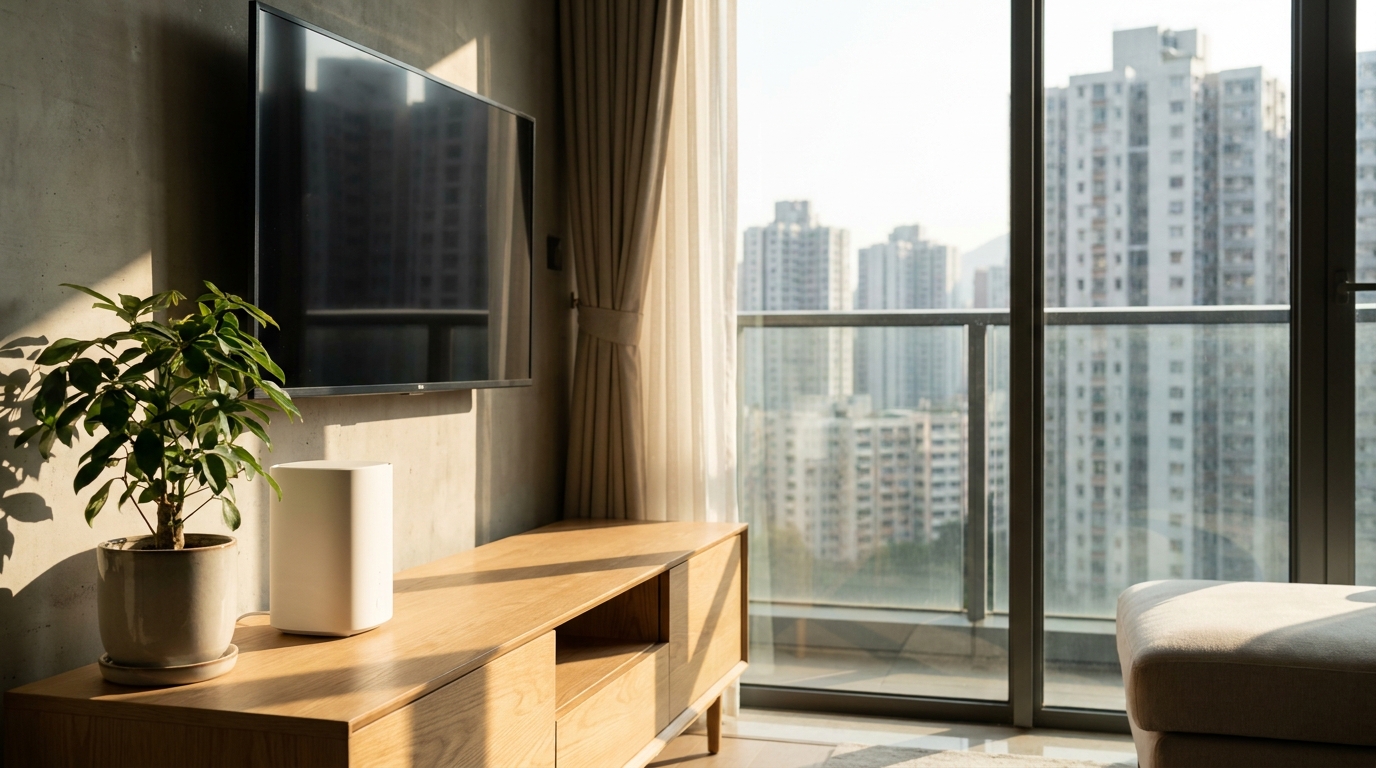
If your flat is around 400 to 500 square feet, the UDM is the most cost-effective and space-saving choice. Just place it right in the middle of your living room, and it should cover the whole place perfectly. But if you live in a multi-storey village house, or you're running 2500M or even 10G broadband, the UDM Pro paired with a few standalone APs is the ultimate combo. You can even slot in a hard drive to use its security camera recording features.
3. Prep work and broadband requirements
Even with a top-tier router, you need a solid broadband connection to unleash its full potential. In Hong Kong, major ISPs like HKT, HKBN, CMHK, or SmarTone usually pull a fiber optic cable into your home (FTTH) and connect it to a little black box called an ONT (optical network terminal or modem). Before you start setting things up, make sure your broadband is working properly. 1000M is pretty much the baseline these days—if you're on a 1000M plan for around $198/mo or even less, the UDM will easily max out that speed.
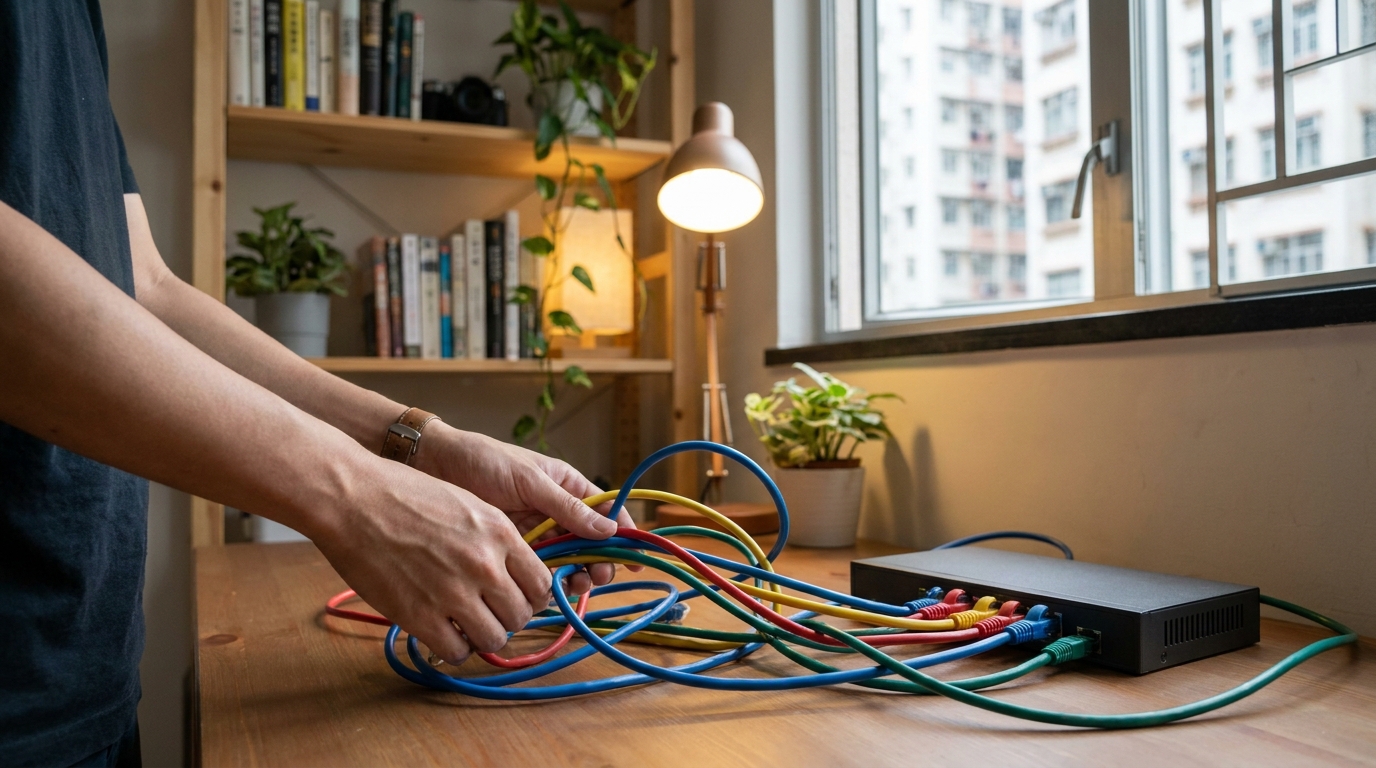
⚠️ Note: If you're currently using the ISP's provided router (like that white HKT box with antennas), remember to ask the technician or call customer service to set it to "Bridge Mode". Otherwise, you'll run into Double NAT issues, which causes gaming disconnects and slows down the UDM's processing speed.
Also, if your home broadband plan requires a Login ID and Password (i.e., a PPPoE connection, which some HKBN or older setups use), make sure to dig out your contract and jot down those credentials. If it's a DHCP connection that automatically assigns an IP (like most HKT broadband plans), it's even easier—just plug and play.
4. Step-by-step beginner setup guide
Many people assume enterprise-grade routers are a nightmare to configure, but Unifi's setup process is actually more user-friendly than many consumer brands. All you need is a smartphone with the "Unifi Network" app installed and Bluetooth turned on. Here's the detailed setup guide for beginners:
- Power it up: Plug the UDM into the power adapter and wait for the top LED ring to emit a soft white light. You'll hear a crisp startup chime.
- Connect to the modem: Grab a high-quality LAN cable and connect your modem's LAN port to the UDM's bottom WAN port (the one with the globe icon).
- Open the mobile app: Launch the Unifi Network app. Thanks to Bluetooth, the app will automatically pop up asking if you want to set up a newly discovered device. Hit confirm.
- Set up WiFi: Follow the on-screen instructions to enter your desired WiFi name (SSID) and password.
- Broadband connection: The system will ask for your connection type. Enter your credentials for PPPoE, or just tap next for DHCP.
- Create a cloud account: Set up a Ubiquiti account so you can remotely manage your home router via the app when you're out and about, and check if anyone is piggybacking on your WiFi.
The whole process takes about 5 to 10 minutes. The machine will reboot once, and when the LED ring turns solid blue, you're all set and ready to surf the web!
5. HK home practical tips and pitfalls to avoid
Once the basic setup is done, we've got some practical tips tailored for Hong Kong's unique living environments. The biggest enemy in a HK home is the "structural wall" (主力牆), packed with steel rebars that severely block WiFi signals. If you place the UDM in the living room but the furthest bedroom gets no signal, whatever you do, don't go buying cheap WiFi extenders. They will drastically slow down your entire network and spike your latency.
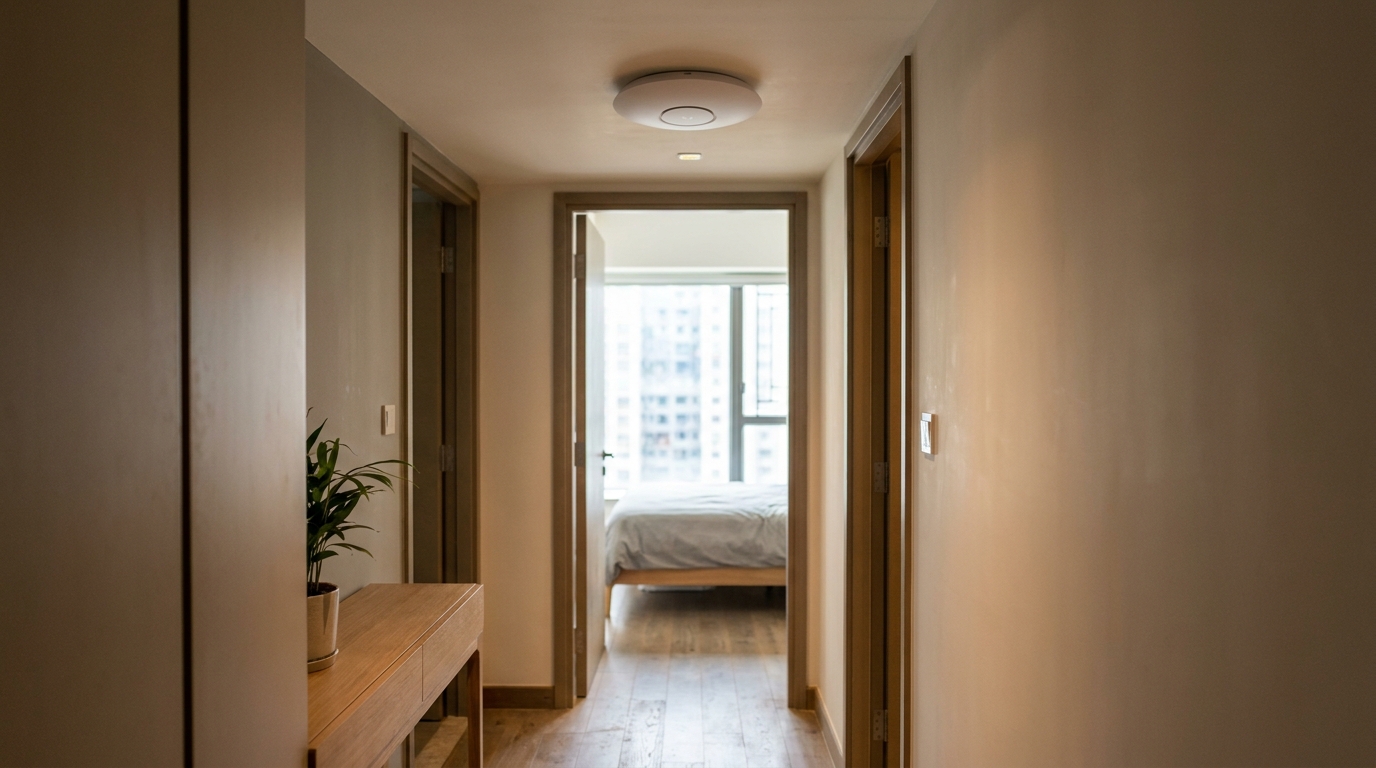
💡 Tip: The right way to do it is to leverage the Unifi ecosystem and grab a U6 Lite or U6 Pro Access Point. If you had LAN cables wired into the rooms during renovation, just connect the UDM's LAN to the wall port, and plug the AP in the bedroom. This gives you perfect seamless roaming. Walk into the living room and it auto-connects to the UDM; step into the bedroom and it instantly switches to the AP without dropping your game.
Placement is also crucial. The UDM is best placed in a slightly elevated, open spot (like on top of the TV cabinet to minimize obstructions). Absolutely do not stuff it at the bottom of a drawer or hide it behind the TV. Not only will this severely impact heat dissipation, but it'll also block the antenna's transmission angles, wasting such a beautiful piece of hardware.
6. Summary
To sum up, while investing in a Unifi Dream Machine is a bit pricier than a standard ISP router, the stability, security, and seamless management experience you get in return are absolutely worth it. A good set of networking gear can easily last you 3 to 5 years, making it a very solid deal in the long run. However, no matter how powerful your router is, the core soul of your setup is still your home broadband line.
🔥 Broadband Upgrade Recommendations
If your UDM is all set up but you're still experiencing lag, it's highly likely your old broadband plan just isn't cutting it anymore. Competition among major ISPs is fierce right now, and they're constantly rolling out great value 2.5G or even 10G broadband plans. If your contract is almost up, head over to our King Broadband website to compare all the latest and best broadband quotes in Hong Kong at a glance!
No more eating dust on the streets looking for street booth sales reps. Just click a few buttons from the comfort of your home, and our specialists will handle your switch and upgrade. Save time, save money, and truly enjoy a blazing-fast internet experience!