Published: 27 September 2026 | Category: Industry Guide
1. Why is Upload Bandwidth So Crucial for Twitch Streaming?
Many of us who just watch Netflix or play games online usually only care about "Download Speed" when signing up for broadband, thinking that as long as downloads are fast, the internet is fine. But if you want to be a top-tier Twitch streamer, the rules of the game are completely different! When streaming, your PC is "pushing" video and audio data up to Twitch's servers, so Upload Speed is actually the most critical factor.
When your upload bandwidth isn't enough or your connection is unstable, you'll experience what's known as "Drop Frames". For viewers, this is a disaster and will easily make them switch channels instantly. Common consequences of insufficient upload bandwidth include:
- Pixelation: During intense gaming moments (like shooters), the screen gets blurry and blocky.
- Lag: The video stutters or even freezes for a few seconds, completely out of sync with your commentary.
- Audio/Video Desync: There's a delay between the sound and the picture, ruining the viewing experience.
- Disconnects: In the worst-case scenario, the stream just drops, forcing viewers to reload.
To ensure a smooth stream, we first need to understand a vital metric: Bitrate. This directly determines how much upload bandwidth you actually need.
2. Official Twitch Recommendations: Bitrate Settings by Resolution
Bitrate is usually measured in kbps (kilobits per second), representing how much data you're sending to Twitch every second. The higher the bitrate, the better the video quality, but the higher the demand on your upload bandwidth. Twitch has official recommended settings for different resolutions and frame rates (FPS). We've put together a clear comparison chart so you can match it to your setup.
Generally speaking, if you set your bitrate to 6000 kbps, you'll need a stable upload speed of at least 6 Mbps. However, to leave some headroom for other network activities (like the game itself, Discord voice chats, etc.), we recommend your actual upload bandwidth be at least 1.5 to 2 times your bitrate setting.
| Resolution & FPS | Recommended Bitrate (kbps) | Minimum Upload Bandwidth (Stable Mbps) | Recommended Safe Bandwidth (Mbps) |
|---|---|---|---|
| 1080p 60fps | 6000 | 6 Mbps | 12 Mbps or above |
| 1080p 30fps | 4500 | 4.5 Mbps | 10 Mbps or above |
| 720p 60fps | 4500 | 4.5 Mbps | 10 Mbps or above |
| 720p 30fps | 3000 | 3 Mbps | 6 Mbps or above |
💡 Tip: Twitch currently caps the bitrate for regular streamers at around 6000 kbps. Even if you push it to 8000 kbps, the servers might automatically downgrade it. So, setting it to 6000 kbps is already the golden standard for 1080p streaming.
3. Breaking Down Actual Upload Speeds of HK Broadband
We're pretty lucky in Hong Kong because fibre broadband penetration is extremely high. Many telecom providers in the market, such as HKT, HKBN, and CMHK, offer 1000M (i.e., 1Gbps) fibre-to-the-home plans. The pricing is also very affordable, usually ranging from $100 to $198 a month. But is every 1000M broadband suitable for streaming?
The key lies in "symmetrical upload and download speeds". Traditional Fibre-to-the-Home (FTTH) usually offers symmetrical speeds, meaning if your download is 1000Mbps, your upload will also be close to 1000Mbps. This speed is more than enough to handle Twitch's maximum 6 Mbps requirement, letting you stream and download massive games at the same time without any lag.
⚠️ Note: If you're using 5G home broadband (like those mobile network routers from SmarTone or 3HK), you need to be extra careful! 5G networks might have fast download speeds, but upload speeds usually hover around 30Mbps to 50Mbps. Plus, they are highly susceptible to weather, location, and peak hours (like 8-11 PM), making them prone to drop frames when streaming.
🔥 Recommended Plans: Broadband Picks for Streamers
We highly recommend streamers sign up for 1000M or 2000M fibre-to-the-home plans and confirm with the provider that it offers "symmetrical speeds". If you often play on overseas servers, consider adding a "gamer line" service (like HKT's Gamer Pack). They optimise routing to overseas servers for lower ping, giving you a doubly smooth experience for both streaming and gaming.
4. Practical Guide: OBS Settings to Prevent Stream Lag
Even if your home broadband is lightning fast, poorly configured streaming software (like OBS Studio) will still give your viewers a hard time. Here are some essential OBS setting tips to squeeze every drop of potential out of your network and keep your stream stable:
- Use CBR (Constant Bitrate): In OBS's "Output" settings, make sure to select "CBR" for Rate Control, not "VBR" (Variable Bitrate). CBR keeps your data transmission steady, which is exactly the kind of stable data flow Twitch servers prefer.
- Prioritise Hardware Encoding: If you have a dedicated graphics card (like NVIDIA), choose "NVENC H.264" as your encoder. Using your GPU for encoding massively reduces CPU load, making your gameplay much smoother.
- Keyframe Interval: Twitch officially mandates this be set to "2". If set incorrectly, your stream will suffer from severe delays.
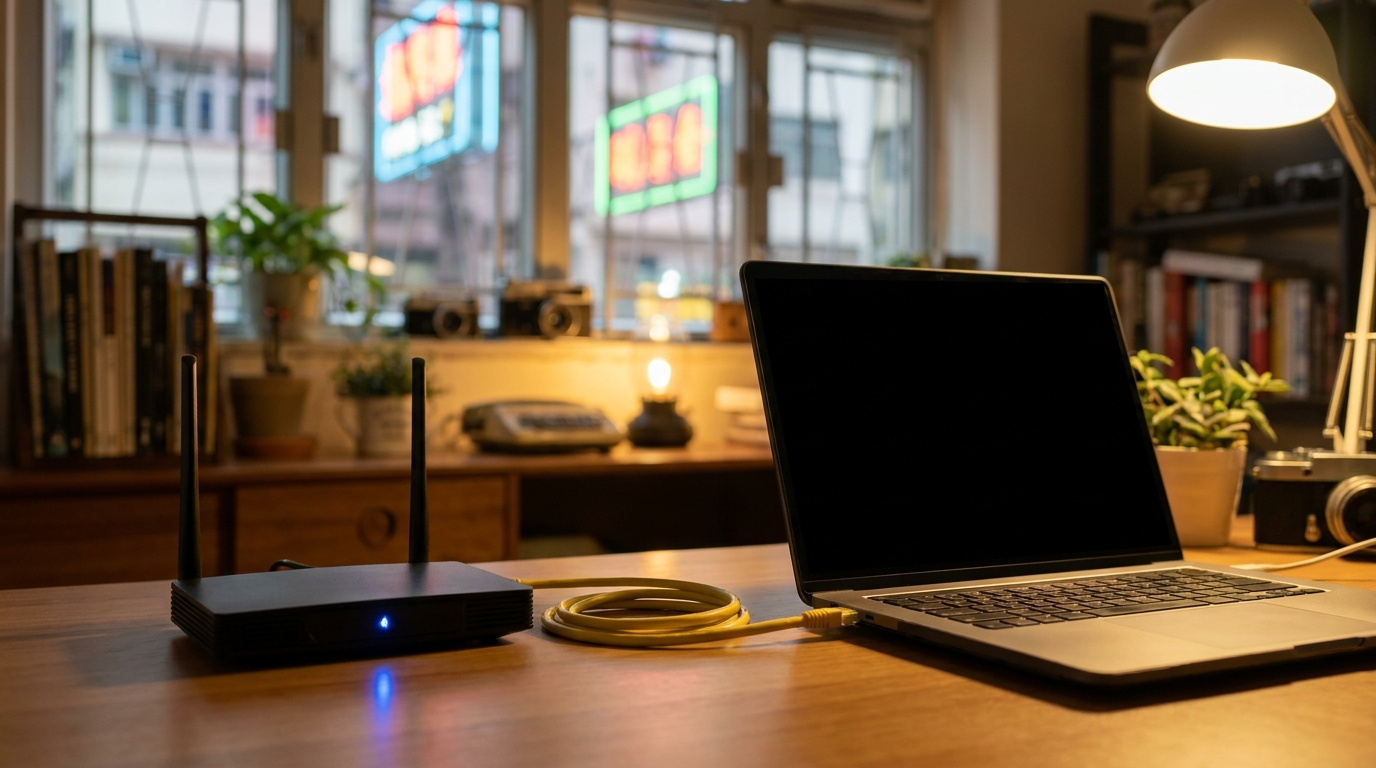
- Ditch Wi-Fi, Plug in a LAN Cable: This is incredibly important! No matter how powerful your home Wi-Fi 6 router is, wireless networks always carry the risk of interference and packet loss. You must use a physical LAN cable to connect your PC directly to the router when streaming.
Before going live every time, we suggest running a test using Twitch Inspector or enabling "Bandwidth Test Mode" in OBS. Check if the connection is stable and ensure Drop Frames stay at 0% before you officially Go Live.
5. Summary: Choose the Right Broadband and Win at the Starting Line
As a Twitch streamer, creative content and personal charisma are definitely important, but the technical "smoothness" is the absolute baseline for retaining viewers. No one wants to watch a stream that stutters from start to finish with pixelated video quality. Let's recap today's key points:
- Streaming relies heavily on upload bandwidth, not download speed.
- The best bitrate setting for 1080p 60fps is 6000 kbps.
- Always use a physical LAN cable and CBR (Constant Bitrate).
- Avoid using 5G home broadband as your main streaming connection; opt for Fibre-to-the-Home (symmetrical speeds) broadband instead.
If you find your current stream is constantly lagging, you might want to check your broadband contract first to see if the upload speed is up to par. Looking to upgrade or switch providers? Remember to do your homework, compare the plans and coverage of major telecom providers in the market, and pick the most stable fibre broadband so your streaming career can take off without a hitch!