
Published: 18 April 2026 | Category: Practical Tutorial
1. Why Flash OpenWrt? The Secret to Reviving Old Routers
Do you have a dusty old router lying around at home or in the office? Once we buy a new one, the old machine usually gets tossed aside. But here's the secret: by "flashing" it with OpenWrt, a cheap $200 router can instantly unlock powerful features that rival a $2,000 enterprise-grade beast! OpenWrt is an open-source, Linux-based router operating system. Think of it as the Android of the router world—it gives you absolute control over your hardware.
A lot of factory firmware is incredibly conservative. To differentiate between budget and premium models, manufacturers often use software locks to disable advanced features, even when the CPU is more than capable. Flashing OpenWrt shatters these restrictions, letting you tap into the machine's true hardware potential. For savvy Hong Kong consumers and SME bosses, this is an incredibly practical and cost-effective IT solution.
- Unlock Advanced Features: Install things the factory firmware lacks, like a VPN server, network-wide ad-blocking, and multi-WAN load balancing.
- Rock-Solid Stability: Factory firmware often crashes when handling too many connections. OpenWrt's Linux core is famous for running months without needing a reboot.
- Boost Network Security: Manufacturers usually stop patching security flaws on older routers. The OpenWrt community pushes regular updates to keep hackers at bay.
- Eco-Friendly & Budget-Smart: Repurpose your old machine as a secondary access point (Dumb AP) or a "router on a stick" to maximize its lifespan.
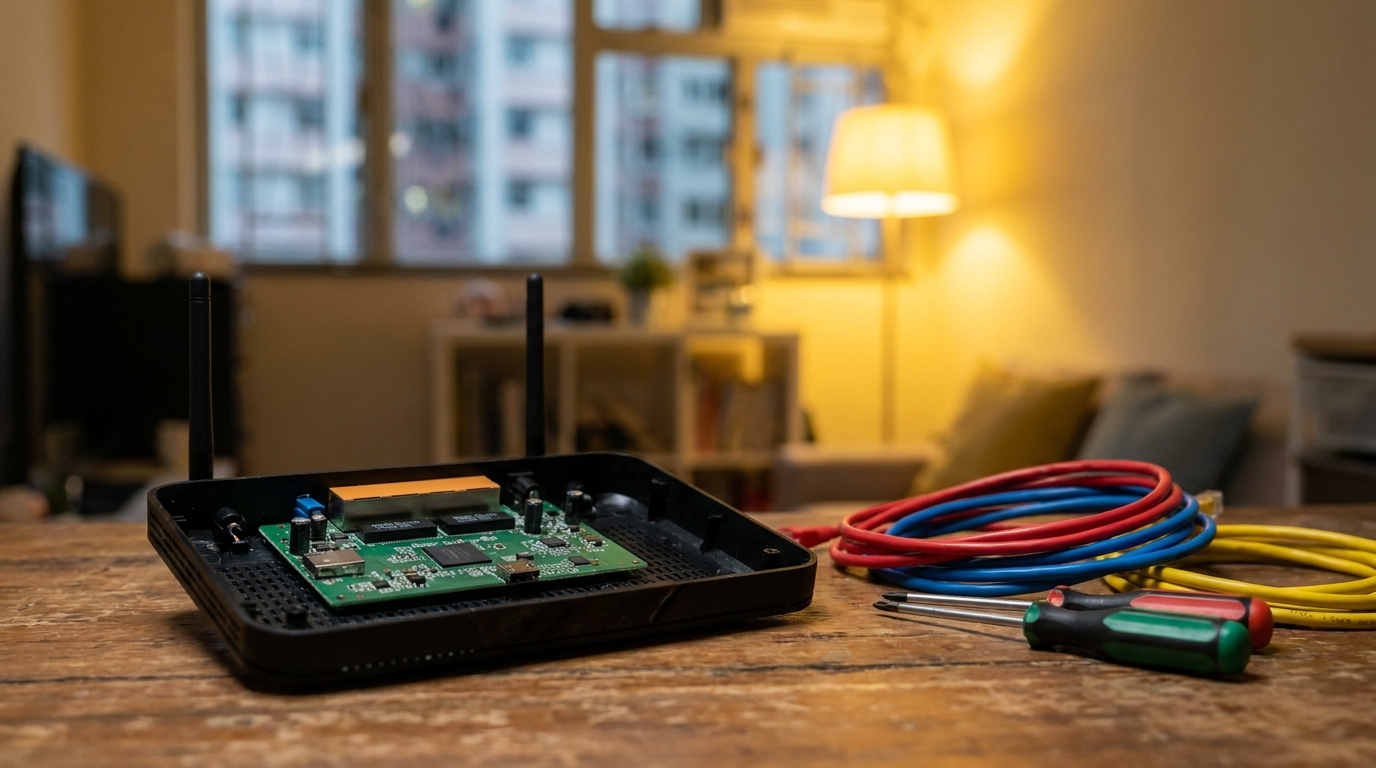
2. Pre-Flashing Prep: Is Your Router Supported?
As powerful as OpenWrt is, it doesn't support every router on the market. The first thing you need to do before flashing is to figure out exactly what you're working with. The most crucial specs are your Flash and RAM capacities. Since the OpenWrt system is growing in size, and you'll need spare room for various handy plugins, flashing a router with hardware that's too old or weak will just result in a painfully slow experience.
To check if your machine is supported, the safest bet is to search for your model on the OpenWrt official Table of Hardware (ToH). Keep in mind that the same model might have different hardware versions (like v1 and v2) using completely different chips, so always double-check the sticker on the bottom of your router!
| Hardware Specs | Minimum (Barely Enough) | Recommended (For Plugins) |
|---|---|---|
| Flash | 16MB | 32MB or above |
| RAM | 64MB | 128MB or above |
| CPU | Single-core MIPS | Dual-core ARM or above |
⚠️ Warning: If your router only has 8MB of Flash or less, we strongly advise against forcing the latest version of OpenWrt onto it. You likely won't be able to install any plugins, and it might not even load the basic Web interface.
3. Step-by-Step Flashing Guide
Once you've confirmed hardware support, we can officially start flashing. The process isn't actually complicated—the key is to stay calm and follow the steps closely. First, find the firmware for your specific model on the OpenWrt website. There are usually two versions: "factory" and "sysupgrade". If you're transitioning from factory firmware to OpenWrt for the first time, you must download the "factory" version. Only use "sysupgrade" if you're already running OpenWrt and just want to update.
With your file ready, just follow these golden steps to get it done:
- Disconnect from the Internet: Unplug the WAN cable from your router (the one connecting to the modem) to ensure it's offline.
- Connect via Ethernet: Use a LAN cable to connect your computer directly to the router's LAN 1 port. Never flash over Wi-Fi—if the connection drops mid-way, you'll brick your router!
- Log into the Factory Interface: Open your browser and enter the default IP address (usually 192.168.1.1 or 192.168.0.1) to access the admin panel.
- Upload the Firmware: Look for the "System Upgrade" or "Firmware Upgrade" option in the settings, select the factory.bin file you downloaded earlier, and hit upgrade.
- Wait Patiently: The machine will reboot, and the progress bar might take a few minutes. Absolutely do not cut the power or unplug any cables during this time!

💡 Pro Tip: After flashing, OpenWrt's default IP usually becomes 192.168.1.1. The default username is "root" with a blank password. Remember to set a strong password immediately upon your first login!
4. Must-Install: Top 3 Practical OpenWrt Plugins
Successfully flashing OpenWrt is just the first step. The real soul that turns your machine into a "pro beast" lies in its massive software package library. As long as your router has enough Flash capacity, you can freely search for and install various features from the "Software" page in the admin panel. Here are three god-tier plugins we highly recommend for Hong Kong households and SMEs:
🔥 Top Pick: SQM QoS (Smart Queue Management)
If someone at home is gaming while another is streaming 4K Netflix, the gamer is bound to suffer massive ping spikes. Installing SQM QoS perfectly solves this bufferbloat issue by smartly allocating bandwidth, ensuring smooth gaming and video calls without a hitch.
- WireGuard VPN Server: A next-gen VPN protocol that's exponentially faster than traditional OpenVPN. Once installed, you can securely connect back to your home or office intranet even on mobile data, allowing you to grab files from your NAS or remote into your PC. It's incredibly useful for SME employees working from home.
- Adblock / AdGuard Home: Network-wide ad-blocking right from the router level. Any device connected to your Wi-Fi (phones, tablets, Smart TVs) will automatically block annoying pop-ups and malicious tracking scripts, saving you tons of data and loading time.
- mwan3 (Multi-WAN Load Balancing): If you have two home broadband lines from different ISPs, this plugin merges them. If one drops, the other instantly takes over, giving you an always-on, unbreakable internet connection!

Summary: A Great Router Needs Fast Broadband
To sum up, flashing OpenWrt onto your old router is an incredibly high-value tech investment. Not only does it breathe new life into old gear and reduce e-waste, but it also lets you craft a tailor-made, highly flexible network environment. Whether you're after lower ping for gaming, setting up a private VPN, or just boosting your overall home internet experience, OpenWrt easily delivers.
However, you have to understand that no matter how powerful or feature-packed your router is, it only manages your "intranet" at home. To truly enjoy a seamless, blazing-fast internet experience, your "external" home broadband line is the fundamental foundation. If you're still stuck on old 100M VDSL, even the best-flashed router won't save you. Today, mainstream Hong Kong ISPs like HKT, HKBN, and CMHK have fully rolled out 1000M fiber, and even 2.5G broadband is getting more affordable. While upgrading your router's OS, it's worth keeping an eye on these broadband details:
- Fiber-to-the-Home (FTTH): Make sure your building has fiber coverage so you can truly enjoy low latency.
- Symmetrical Bandwidth: Having upload speeds as fast as download speeds is especially crucial for running a VPN or NAS.
- Contract Terms & Welcome Offers: ISP competition is fierce right now. Switching providers often gets you a few months free or waived installation fees, which can easily work out cheaper than renewing.
Once you've got your OpenWrt beast up and running, remember to review your broadband contract. See if there's room to upgrade to a stronger, faster fiber broadband line—that's the only way to perfectly unleash the full potential of your high-end router!