
Published: 16 July 2026 | Category: Troubleshooting
1. What is NAT Type? Why Do I Keep Disconnecting?
If you're a gamer, whether on PS5, Xbox, or Switch, you've definitely experienced random disconnects during online matches or failed attempts to party up with friends. When this happens, there's a high chance your home broadband's NAT Type (Network Address Translation) is acting up. Simply put, NAT translates your home network's private IP addresses into a public IP address on the internet. Your NAT Type reflects just how smoothly your console communicates with the outside world.
NAT Type is usually divided into three levels. Different consoles might use slightly different names, but the concept is exactly the same:
- Type 1 / Open: The perfect state! Your console is connected directly to the internet without any firewall or router blocking it. It's the fastest and most stable connection, allowing you to connect with anyone.
- Type 2 / Moderate: The most common state. Your console connects via a router, but the ports are configured correctly. General gaming and partying up work fine. This is the most ideal and secure setup.
- Type 3 / Strict: A gamer's nightmare! Your network is heavily restricted, making it incredibly hard to connect with other players. Party chat will have no sound, and you'll experience frequent disconnects. If you're on this Type, you absolutely need to fix it!
💡 Tip: If you're using 5G home broadband or cheaper village house broadband, you're highly likely to get hit with NAT Type 3 because they usually assign virtual IPs. We'll explain how to solve this below.

2. How to Check Your Console's NAT Type
Before messing with any router settings, the first step is to see what state your console is currently in. Checking this on different consoles is super easy and only takes a few steps:
How to Check on PS5
- Go to "Settings" (the gear icon) in the top right corner of the home screen.
- Select "Network", then go to "Connection Status".
- Click "Test Internet Connection", wait for the test to finish, and check if the "NAT Type" in the results is Type 1, 2, or 3.
How to Check on Nintendo Switch
- From the Home menu, go to "System Settings".
- Select "Internet" from the left menu, then choose "Test Connection".
- The screen will show your NAT Type as A, B, C, D, or F. A and B are good, while C or below means your connection is restricted.
How to Check on Xbox Series X/S
- Press the Xbox button on your controller to open the guide, and go to "Settings".
- Go to "General" and select "Network settings".
- On the right side of the screen, it will directly display whether your "NAT Type" is Open, Moderate, or Strict.
If you check and find you're on Type 2 (or Switch's Type B / Xbox's Moderate), congratulations, that's actually good enough and you don't need to tweak anything. But if you're on Type 3 (Strict / Type C or below), you'll need to follow the ultimate fixes below!
3. Four Ultimate Fixes for NAT Type 3
Don't panic if you discover you have NAT Type 3. We can unblock your connection by tweaking your router settings. Here are four methods ranging from easy to advanced—we recommend trying them in order, one of them is bound to help.
Method 1: Enable UPnP (Universal Plug and Play)
This is the easiest method. UPnP allows your router to automatically open ports for your console. You just need to log into your home router's admin panel (usually 192.168.1.1 or 192.168.0.1), find the "UPnP" option under "Advanced Settings" or "Network Settings", set it to Enable, and then restart both your router and console. Done.
Method 2: Set Up Port Forwarding
If UPnP doesn't work, you can manually open the doors for your console. First, you need to assign a static local IP to your console in your router settings. Then, in the router's Port Forwarding section, enter the specific port numbers required by your PS5, Xbox, or Switch. For example, PSN usually requires TCP: 80, 443, 2116 4877 and UDP: 2116 4877. Once set up, data can flow in and out freely.
Method 3: The Ultimate Weapon - DMZ (Demilitarized Zone)
DMZ completely exposes your specified device to the internet, bypassing all firewalls. The process is similar: first, assign a static IP to your console, then enable the DMZ function on your router and enter the console's IP. This trick solves NAT Type issues almost 100% of the time, but you need to be aware of the security risks.
⚠️ Warning: While DMZ is convenient, removing firewall protection exposes your device to a higher risk of cyberattacks. We recommend only putting gaming consoles (PS5/Switch) in the DMZ. Absolutely do not put your daily-use PC in there, or you'll easily fall victim to viruses or ransomware!
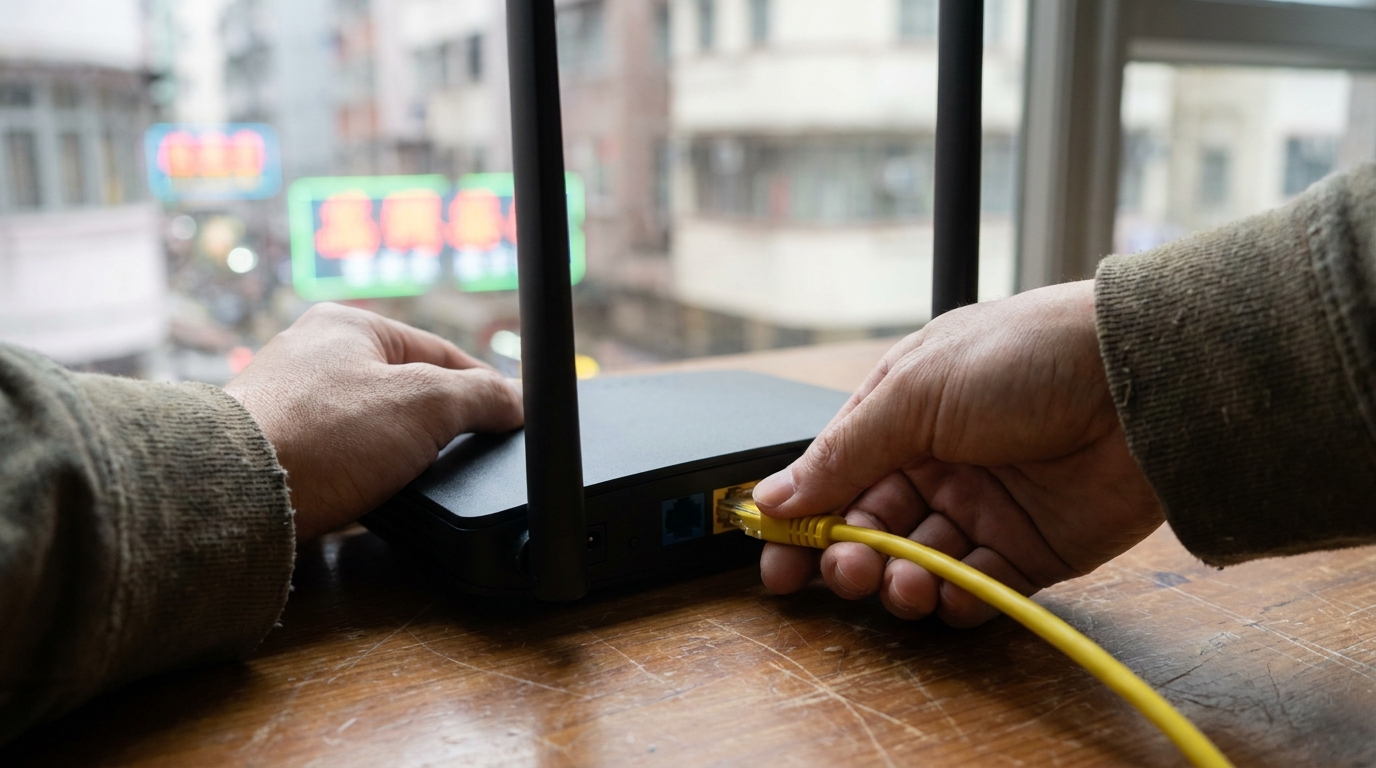
4. Is Private IP (CGNAT) the Silent Killer? The ISP Trap
Many readers try enabling UPnP, Port Forwarding, and even DMZ, only to find they're still stuck on NAT Type 3! Why does this happen? The most likely reason is that you've fallen into your ISP's CGNAT (Carrier-grade NAT) trap.
Nowadays, some Hong Kong telecom providers (especially those offering cheap village house broadband or 5G home broadband) want to save on IPv4 addresses. Instead of assigning you a real "Public IP", they give you a "Private IP". In this scenario, your home router is already sitting behind the ISP's massive router (meaning Double NAT). No matter how you configure your own router, your connection to the internet is blocked, and your gaming experience will definitely suffer.
| Item | Real Public IP | Private IP / CGNAT |
|---|---|---|
| Common Broadband Types | Fiber-to-the-Home (HKT, HKBN, standard plans) | 5G Home Broadband, Cheap Village House Broadband |
| NAT Type Performance | Type 1 or Type 2 (Very smooth) | Type 3 (Frequent disconnects, can't party up) |
| Solution | Default router settings are usually enough, or enable UPnP | Cannot be fixed via router; must call ISP to request an IP change |
🔥 Recommended Action
If you suspect you're on a Private IP, you can call your broadband provider's customer service and request them to switch you back to a "Real Public IP / Dynamic Public IP". Some providers (like certain 5G broadband services) might charge extra for this, while others will switch it for free if you just call and complain about gaming disconnects.

5. Summary: Still Not Working? It Might Be Time to Switch Broadband
Gaming is all about smoothness. Constantly crashing out of games or not being able to hear your teammates is a massive buzzkill. Here's a quick summary of the core steps to fix your NAT Type:
- Step 1: Check your console to confirm if you're on NAT Type 3 (Strict).
- Step 2: Log into your router and enable UPnP, or manually set up Port Forwarding and DMZ.
- Step 3: If tweaking the router does nothing, there's an 80% chance you're stuck on a CGNAT Private IP.
- Step 4: Call your broadband provider's CS and strongly request a switch to a Public IP.
But honestly, if your current broadband provider absolutely refuses to give you a Public IP, or if it's painfully slow every night during peak gaming hours, tweaking your router is just a band-aid solution. For gamers who actually care about performance, installing a stable fiber broadband connection (like 1000M or the currently popular 2000M fiber) is definitely the ultimate fix. Mainstream Hong Kong providers like HKT and HKBN generally assign real Public IPs on their standard fiber broadband plans. The moment you plug it into your router, you'll get a beautiful NAT Type 2, making your gaming experience buttery smooth.
If your contract is almost up, or you just can't stand your current provider anymore, why not compare the latest broadband offers on the market and find an internet plan that's truly built for gaming!